
Video Cutter Pro
HARDCODED JOY S.R.L.Video Players & Editors
0.00.00 Reviews
- Version
- 1.1.6
- Installs
- 10.00K
- Age Rating
- Everyone
Screenshots
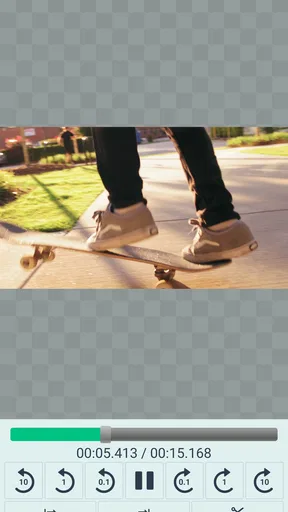
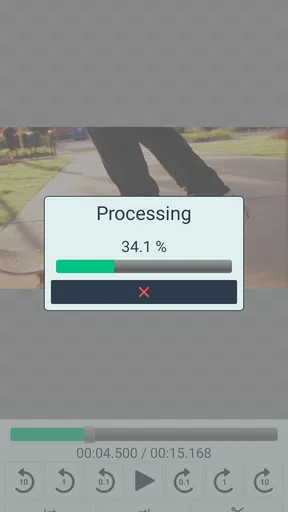

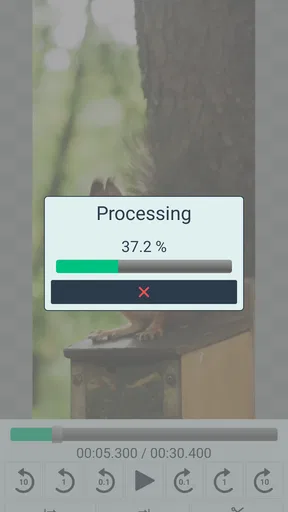
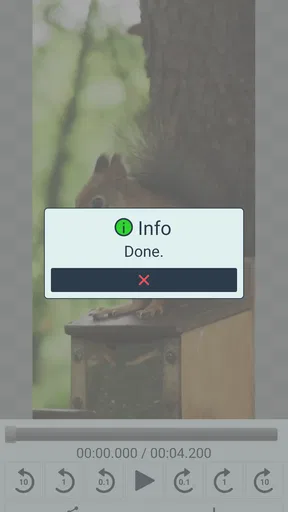
Our Review of Video Cutter Pro
 Analysis by Appyee
When I need to remove the awkward beginning or ending from a phone video, I usually want a tool that gets out of the way. I do not want a full editing suite, a timeline packed with controls, or a project that takes longer to understand than the clip itself. Video Cutter Pro is built around that simpler job: open a video, choose where it should start and finish, then save or share the shorter result.
That narrow purpose is the app’s main appeal. It belongs to the video players and editors category, but it does not try to behave like a complete production studio. In my experience, that makes it easier to approach when the task is practical rather than creative. If I have recorded ten seconds before a conversation began, or left several seconds of empty footage after a moment worth sharing, a dedicated cutter makes more sense than opening a large editor and searching for the basic trim control.
At the same time, the limited scope matters. This is not the app I would choose for titles, music, transitions, effects, layered clips, or a carefully assembled social video. I see it as a focused utility for making one existing recording shorter. That distinction is important before paying for it, because the straightforward workflow is useful only when trimming is genuinely all I need.
How the simple trimming workflow feels in everyday use
I find the appeal of a simple trimming workflow is that it keeps my attention on the moment I want to preserve, rather than on editing controls. Before I begin, I decide whether I’m making a quick shareable copy or preparing footage I may want to revisit later; that choice helps me avoid treating a small trim as a replacement for the original. From there, the first useful milestone is getting a clean clip ready to check.
A quick start without an editing lesson
The central workflow is easy to understand: select a video file, identify the beginning and end of the section worth keeping, and create a trimmed clip. I like this approach because it matches the way many people think about a small video correction. I am not trying to build a project; I am deciding which portion belongs in the final file.
A realistic example would be a family member sending me a recording of a school performance. The useful part may begin after the person holding the phone has finished adjusting the camera, and the recording may continue after everyone has left the frame. With this app, I can focus on setting those two boundaries instead of importing the footage into a broader editor. The result is more suitable for sharing and easier for the recipient to watch.
The same workflow can help with a work-related clip. If I record a short demonstration of a phone setting, I may want to remove the moment spent unlocking the device and the pause after the explanation. A dedicated cutter is valuable here because it keeps the operation focused: preserve the useful middle, discard the unnecessary edges.
One practical habit makes the process safer. I would first watch enough of the original to identify the true start and finish, rather than dragging the boundaries based only on a quick visual impression. A few extra seconds are often better than cutting into the first word or the final movement. After saving, I would also open the new file and check it before deleting the original. That small verification step is especially worthwhile when the clip matters.
What to expect from speed
For short recordings, the app should feel naturally suited to quick jobs because the requested operation is limited to selecting a range and producing a shorter file. Still, trimming is not the same as merely changing a label. The phone may need to process the source video before the finished clip is available, and the experience can vary with the recording’s length, resolution, storage location, and the device doing the work.
I would therefore judge its speed by the task rather than expect every video to finish instantly. A brief clip captured on the phone is the kind of material for which this tool makes the most sense. A long recording, a high-quality camera file, or a video stored somewhere that takes time to access may demand more patience. The app’s focused interface can make the decision quick, but the actual export still depends on the media involved.
There is also a useful trade-off between precision and speed. If I move the boundaries carefully, I reduce the chance of having to repeat the operation. Rushing the selection can create a second pass, which defeats the purpose of using a compact cutter. For casual sharing, I would choose a clean, slightly conservative trim over repeatedly chasing an exact frame.
Heavy-use moments and resource expectations
The most demanding situation is not opening the interface; it is handling a substantial video and creating a new output. A long recording gives the app more material to inspect and process, while a large source file can put greater pressure on available storage during the save. I would avoid beginning an important export when the phone is nearly full, because a trimmed copy still needs room to be written.
This is one of the less obvious considerations with a tool that looks simple. Removing most of a video does not necessarily mean the phone can work with only the tiny final size from the beginning. The source must still be read, and the new file must still be created. If the device is older or busy with other tasks, closing unnecessary apps and keeping the phone connected to power would be sensible for a longer clip.
For occasional trimming, I would not treat this as a heavy background utility. Its purpose is task-based: open it when needed, complete the edit, and move on. People who regularly process many long recordings should pay closer attention to how their particular phone handles exports. A focused cutter can simplify the controls without removing the underlying work involved in video processing.
Reliability, saving, and recovery habits
The most important reliability question for me is not whether the app has a long feature list. It is whether I can tell which file is the original, which one is the trimmed copy, and whether the finished result is ready to share. A cautious workflow helps: keep the source until the new clip has been opened successfully, then share the new version rather than replacing the original immediately.
I would also avoid treating the first save as the only copy of something irreplaceable. If a video records an event that cannot be repeated, the original should remain untouched. The safer pattern is to trim for convenience while preserving the source separately. This is good practice with any editor, but it matters even more with a small utility because the interface is designed for speed and simplicity rather than project management.
If an interruption occurs during processing, I would reopen the app and check the output location before assuming the operation failed. I would not repeatedly start exports without checking, since that can leave several similarly named clips and make it harder to identify the correct one. Clear personal naming, where the phone allows it, can help distinguish the original from the shortened version.
Sharing is best handled as a final step after playback. A clip can have the right duration and still begin too early, end too abruptly, or miss the moment I intended to keep. I find that a quick review of the entire shortened file is more useful than judging it only from the selected boundaries. This is particularly true for speech, where a small cut can remove the first syllable of a sentence.
Device constraints that affect the experience
The app supports devices running Android eight or later, so compatibility is broad enough for many Android phones still in everyday use. That does not mean every compatible device will feel identical. Storage space, available memory, the age of the phone, and the size of the source video can all influence how comfortable the editing session feels.
On a newer phone with plenty of free storage, I would expect the focused design to be convenient for ordinary clips. On an older handset, I would be more careful with long recordings and avoid switching between demanding apps while a file is being processed. If the phone struggles with video playback in general, a trimming tool cannot completely remove those hardware limits.
Storage is the constraint I would watch most closely. Before working on a large recording, I would make sure there is enough free space for a new file and keep the original until the result has been checked. This is a better approach than assuming that a short final clip automatically requires very little working room.
Another device-related point is the source itself. A video captured directly on the phone is likely to be a more straightforward starting point than a file moved through several services or stored in an unusual location. If I cannot immediately find a recording, I would first confirm that it is available to the phone’s file picker or media library rather than blaming the trimming workflow. The app’s job begins once the video can be selected.
Where it stands beside broader editors
Compared with a full mobile editor, this app is easier to justify when I need one uncomplicated change. A broader editor may offer more control over exact cuts, multiple segments, sound, text, and visual effects, but those options also add screens, decisions, and opportunities to make a simple job feel complicated. For a clean start-and-end trim, that extra power can be unnecessary.
On the other hand, a full editor is the better choice when the video needs more than its edges removed. If I want to combine separate moments, add a caption, balance audio, or create a particular format for a platform, I would skip this focused tool and use an editor designed for a multi-step project. Trying to force a narrow cutter into that role would only create frustration.
It also differs from using a built-in gallery editor. The gallery option may be more convenient when I am already browsing the recording and need a quick adjustment without opening another app. Video Cutter Pro becomes more attractive when I prefer a dedicated place for this specific action or want a simpler mental model than a general photo-and-video application provides. The better choice depends on whether convenience of location or clarity of purpose matters more to me.
Who will get the most from it
I would recommend it to someone who regularly receives or records videos that are almost ready to share but contain unwanted material at the beginning or end. It suits people who value a short learning curve, want a direct save-and-share path, and do not need a creative editing workspace. It can also be useful for preparing a clip before sending it in a message, where removing dead time makes the recipient’s experience noticeably better.
The age rating is Everyone, which fits the basic nature of the tool. The developer is HARDCODED JOY S.R.L., and the app has reached over ten thousand installs. Those details suggest a small, focused utility rather than a sprawling platform, so I would approach it with the expectation of a specific job well served, not an enormous editing ecosystem.
The price is four dollars and ninety-nine cents. That makes the decision more deliberate than downloading a casual free tool. I would consider it worthwhile if I trim videos often and appreciate a dedicated workflow. If I only shorten a clip once every few months, a phone’s existing editor or another tool already available to me may offer better value.
Questions I would settle before installing
Can it replace a full video editor? In my view, no. Its strength is the start-and-end cut, not a complete production process. If the project involves several clips or visual changes, I would choose a broader application instead.
Is it appropriate for long videos? It can be considered for them, but I would plan around processing time and free storage rather than assuming that every export will be immediate. For important long recordings, I would keep the source, avoid multitasking during the operation, and verify the final file before sharing.
Will the original be safe? My answer is to make it safe through my own workflow: never delete the source until the shortened copy has been opened and checked. That habit protects against selecting the wrong boundaries or discovering that the result is not the version I wanted.
Is it good for precise creative editing? I would not choose it for that. It is better for removing unwanted edges than for shaping a finished story. The more creative decisions I need to make, the more likely a full editor becomes the sensible alternative.
Does the current release feel like a reasonable starting point? Version one point one point six is the version associated with the app, and it was released on July twelfth, two thousand twenty-three. I would still judge the purchase by my own trimming needs and device, because a simple tool’s value comes from how often its focused workflow saves me time.
My performance verdict
After looking at the complete use case, I see Video Cutter Pro as a practical single-purpose editor rather than a general video solution. Its perceived speed comes from reducing the task to two boundaries and an output, while its real workload appears when the source is long, large, or processed on a constrained phone. That balance is easy to understand: the interface can be simple even when the video itself is demanding.
I like the discipline of the design. It encourages me to make one clear change, check the result, and share it without wandering through tools I do not need. The main friction is the same limitation that gives it focus: anyone expecting effects, multiple clips, or detailed production controls will quickly reach the edge of what this app is meant to do.
My recommendation is straightforward: choose it when trimming the beginning and end is the whole job, and skip it when you need an actual editing studio. For short everyday clips, that specialization can be more valuable than a long feature list. For heavy video work or creative projects, I would spend the four dollars and ninety-nine cents elsewhere on a broader solution. Used within its lane, it is a sensible, focused way to turn an almost-ready recording into a cleaner clip.
Verdict
Strengths of Video Cutter Pro
- Cuts videos quickly without requiring advanced editing skills.
- Supports trimming clips for social media and messaging apps.
- Simple interface makes basic editing easy to understand.
- Useful preview helps select the exact section to keep.
- Can reduce unwanted footage before sharing or uploading.
Limitations of Video Cutter Pro
- May offer fewer creative tools than full-featured video editors.
- Export quality and formats may depend on the device or version.
- Large videos can take noticeable time to process.
- Some features may be limited behind ads or in-app purchases.
- Privacy permissions should be reviewed before importing personal videos.
Similar Picks in This Category
View All
Google TV
Google LLC3.9

iTunes
Apple4.7

YouTube
Google LLC3.8

MX Player
Amazon Mobile LLC4.2

CapCut - Video Editor
Bytedance Pte. Ltd.3.5

PLAYit-All in One Video Player
PLAYIT TECHNOLOGY PTE. LTD.4.5
Frequently Asked Questions
What is Video Cutter Pro and what can I use it for?
Video Cutter Pro is a mobile video-editing application designed primarily for trimming and cutting video clips. After testing its workflow, it is best suited to users who want to remove unwanted sections, shorten recordings for social media, or create a cleaner beginning and ending without using a complicated desktop editor. Depending on the version available for your device, additional tools may include cropping, splitting, resizing, basic adjustments, or exporting clips in different formats.
Is Video Cutter Pro easy to use for beginners?
Yes, the app is generally aimed at beginners and casual editors rather than professional filmmakers. You normally select a video from your gallery, move the start and end markers on a timeline, preview the result, and save or share the finished clip. The interface is relatively straightforward, although the exact buttons and available tools can vary between Android and iOS versions. A short preview before exporting is recommended to confirm that the correct section has been selected.
Does Video Cutter Pro reduce video quality or add a watermark?
The final quality depends on the export settings supported by the installed version and the original resolution of your video. Some editing apps preserve the source quality, while others compress files to make processing and sharing faster. You should check the export screen before saving, especially if you need HD or high-resolution output. Watermark behavior may also vary by version or subscription plan, so review the preview and app listing before completing important edits.
Can Video Cutter Pro edit videos without an internet connection?
Basic cutting and trimming can often be performed offline because the video is processed directly on the device. This is useful when editing personal recordings while traveling or when mobile data is unavailable. However, internet access may still be required for downloading the app, displaying advertisements, restoring purchases, accessing cloud-related features, or sharing through certain online services. Availability can differ by platform, so test offline editing with a nonessential clip before relying on it completely.
What should I check before downloading Video Cutter Pro?
Before installing Video Cutter Pro, check that your phone has enough free storage for both the application and temporary files created while processing videos. Review the required Android or iOS version, supported input and output formats, in-app purchases, advertising policy, and requested permissions. It is also wise to read recent store reviews because features, export limits, watermark rules, and privacy practices may change with updates. Always download the official listing to avoid modified or unsafe copies.
